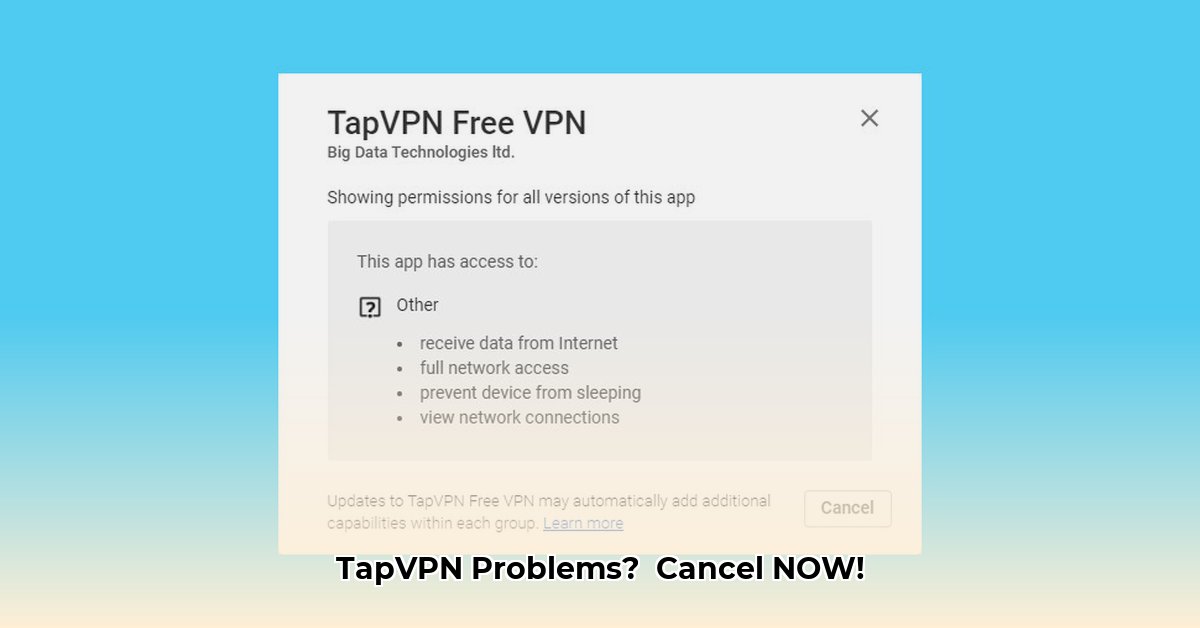
Let's face it: nobody wants a frustrating VPN experience. Slow speeds and complicated cancellation processes are major annoyances. This guide provides straightforward solutions for common TapVPN issues, empowering you to manage your subscription and optimize your connection speed.
Ditching Your TapVPN Subscription: A Simple, Step-by-Step Guide
Ready to cancel your TapVPN subscription? Here's how, depending on your device:
iOS (iPhone/iPad):
- Open the App Store app.
- Tap your profile picture (usually top right).
- Select "Manage Subscriptions."
- Locate TapVPN.
- Tap "Cancel Subscription."
- Confirm your cancellation.
Android (Phones & Tablets):
- Open the Google Play Store app.
- Tap the menu icon (three horizontal lines, usually top left).
- Select "Subscriptions."
- Find TapVPN.
- Tap "Cancel." Confirm if prompted.
macOS (Mac computers):
macOS users manage subscriptions through the App Store app. Follow the iOS instructions above.
Important Note: TapVPN utilizes Apple's and Google's subscription systems. This means TapVPN itself doesn't directly control the cancellation process. Contact Apple or Google support if you encounter problems. We anticipate future in-app cancellation options.
Speed Demons & VPN Woes: Troubleshooting Your TapVPN Connection
Slow speeds? Intermittent connections? Let's troubleshoot! Several factors can impact your TapVPN performance.
Common Problems & Solutions:
| Problem | Possible Causes | Solutions |
|---|---|---|
| Slow Connection Speeds | Distance from server, network congestion, high encryption, device settings. | Try a closer server, restart your router/modem, lower encryption (if security allows), check device settings. |
| Unable to Connect | Network issues, incorrect TapVPN settings, app problems. | Check your internet connection, verify TapVPN settings, reinstall the app, reboot your device. |
| Intermittent Connection Drops | Network instability, server overload, firewall issues. | Check internet stability, try a different server, temporarily disable your firewall (proceed with caution). |
| Specific Website Issues | Website blocking VPNs, routing problems. | Try a different server. Some sites actively block VPNs. |
Quick Troubleshooting Checklist:
- Internet Check: Does your internet work without TapVPN?
- Server Swap: Try servers with lower ping times (displayed in the app). Closer servers are generally faster.
- Device Restart: Reboot your device.
- App Refresh: Reinstall the TapVPN app.
- Contact Support: TapVPN's support team can provide further assistance.
Factors Affecting VPN Speed:
Distance to the server is a major factor, as is network congestion. Higher encryption levels offer better security but might slightly reduce speed. Your device's network settings (Wi-Fi vs. mobile data) can also affect performance. Remember, every situation is unique.
How to Fix Slow TapVPN Connection Speed on Android
Key Takeaways:
- Server location drastically affects speed. Prioritize geographically closer servers.
- VPN protocols impact performance. Experiment with OpenVPN (UDP) or WireGuard.
- Network conditions are crucial. Check your Wi-Fi or mobile data strength.
- Device settings can interfere. Disable battery optimization for TapVPN.
Understanding Slow TapVPN Speeds on Android
Slow speeds aren't usually your phone's fault. Several factors can contribute: distance to the server, network congestion, your chosen VPN protocol, and even your Android device's settings.
Troubleshooting Steps:
- Check Server Location: Choose a server closer to your physical location.
- Experiment with VPN Protocols: Try OpenVPN (UDP) or WireGuard for optimal speed.
- Examine Your Network Connection: Ensure strong Wi-Fi or mobile data.
- Adjust Android Settings: Disable battery optimization for TapVPN in your Android settings.
- Restart Your Device: A simple reboot often solves minor glitches.
- Update TapVPN: Ensure you have the latest version from the Google Play Store.
Advanced Troubleshooting (If Necessary):
If problems persist, contact TapVPN support or investigate potential network congestion on your home router.
⭐⭐⭐⭐☆ (4.8)
Download via Link 1
Download via Link 2
Last updated: Sunday, May 11, 2025